AQWikiTools

Supercharge the AQW Wiki with |

Available for Chrome & Firefox — free, open-source, forever.

0 Features
0 Browsers
0 Min Setup
Scroll to explore
Features

Everything You Need

Hover previews, calculators, dark mode, farm tracking, and more — all in one extension.

Extension Popup
UI

Extension Popup

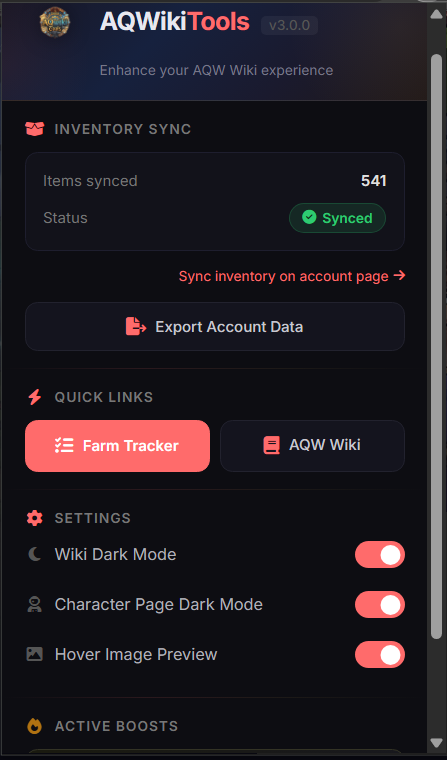
Quick access to inventory sync, settings, dark mode, and the Farm Tracker from one clean popup.

Settings & Active Boosts
UI

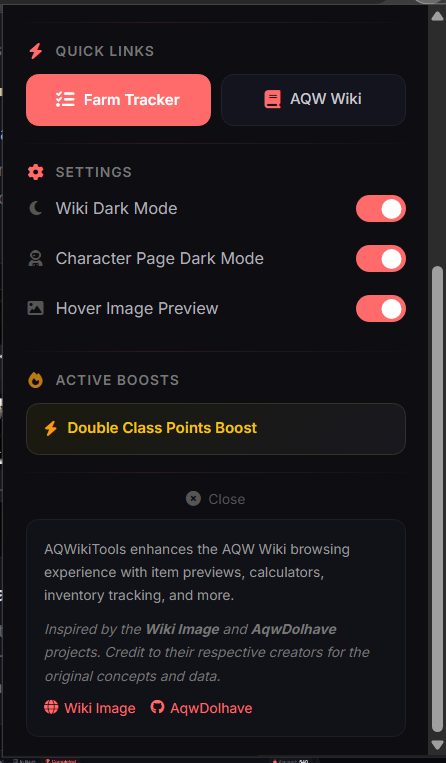
Settings & Boosts

Toggle dark mode, previews, and character page settings. See active server boosts at a glance.

Dark Mode & Owned Items
UI

Dark Mode & Owned Items

Full wiki dark mode with color-coded owned item badges and bank icons on the page.

Wiki Badges & Hover Preview
Tool

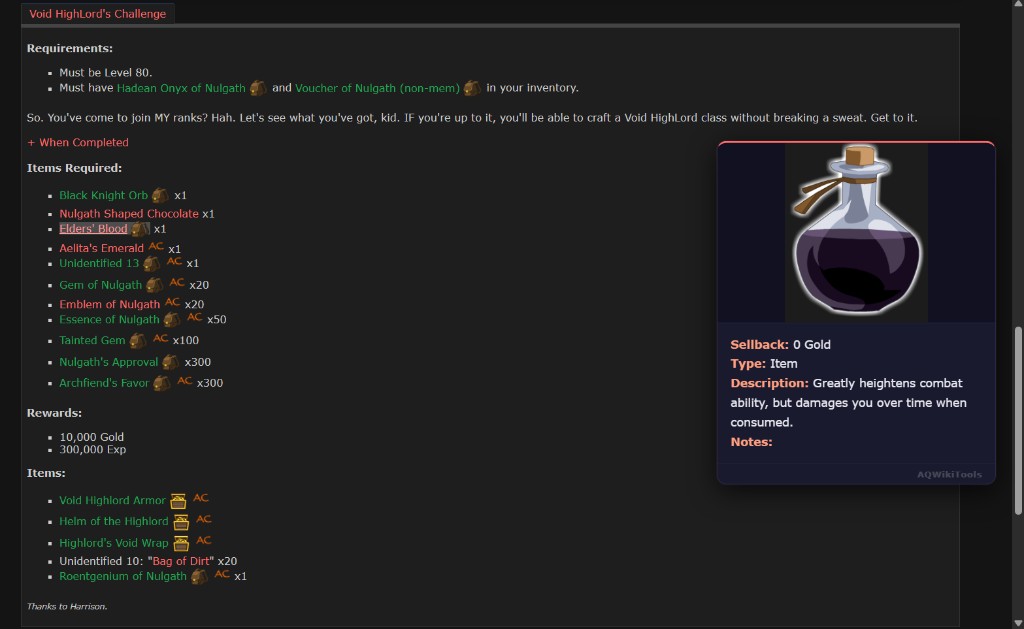
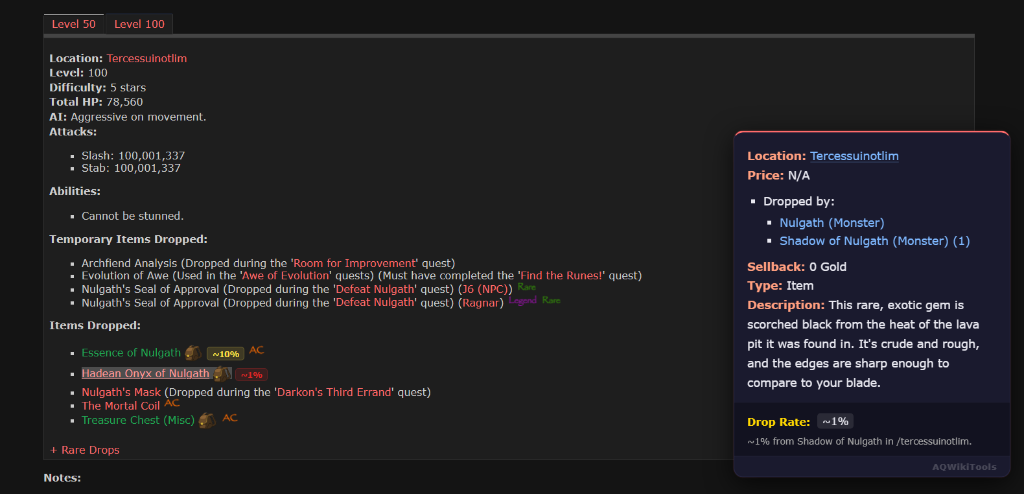
Wiki Badges & Hover Preview

Spot community-estimated drop rate badges right next to item names! Plus, hover any item to see its image, rarity, and description instantly.

Quest Calculator
Tool

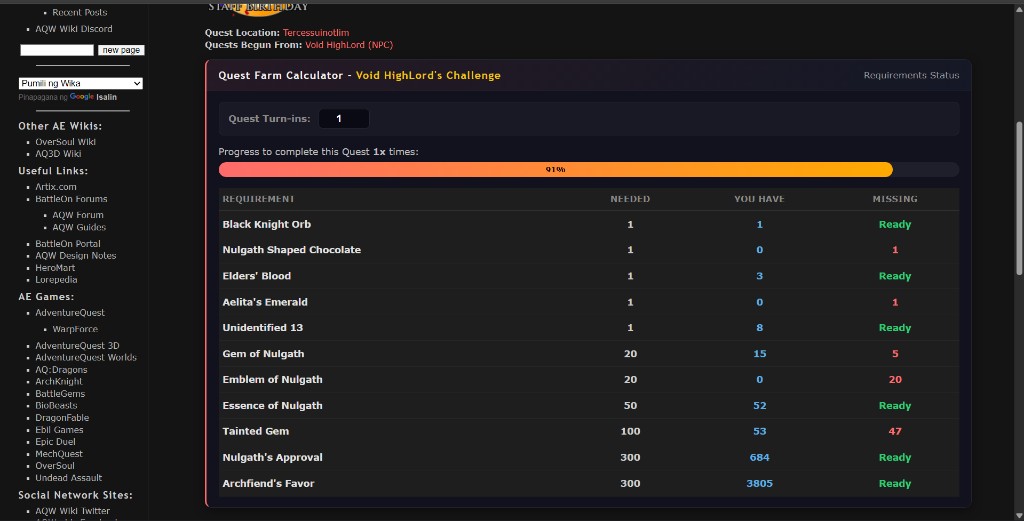
Quest Calculator

Live progress bar showing needed vs. owned materials and what's still missing.

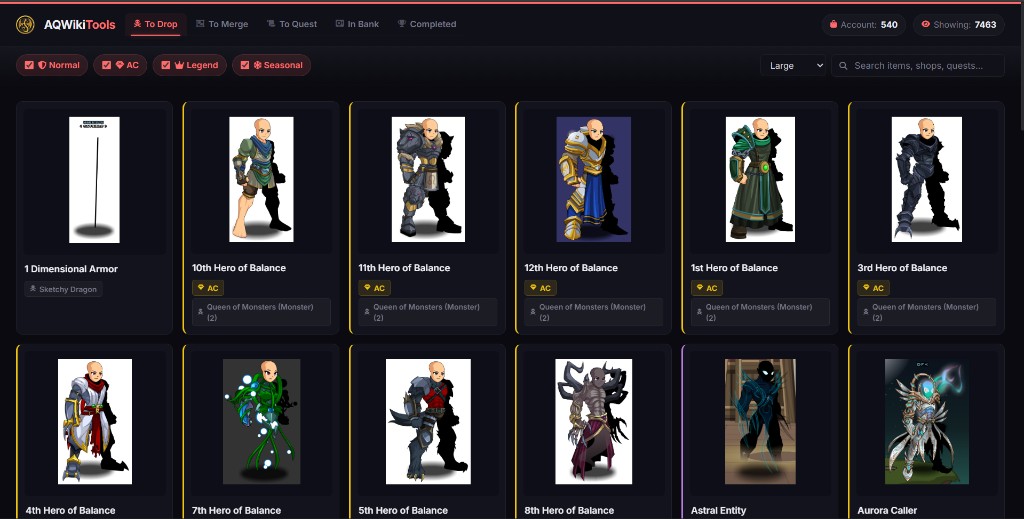
Farm Tracker — To Drop
Tracker

To Drop

All unowned drop items in a filterable grid with rarity filters and drop source info.

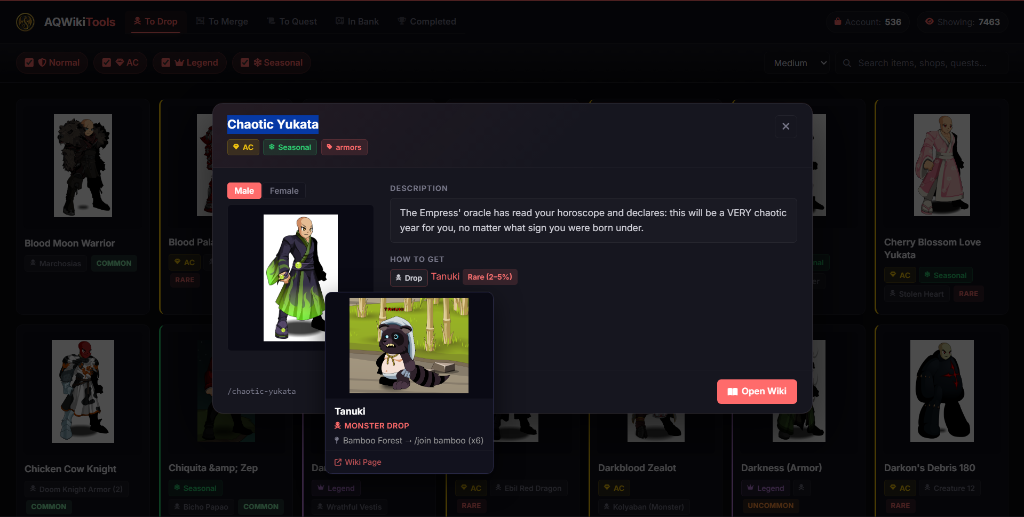
Item Detail Modal
Tracker

Item Detail & Sources

Detailed view with description and drop sources. Hover to preview monster and location. Now features community-estimated drop rates!

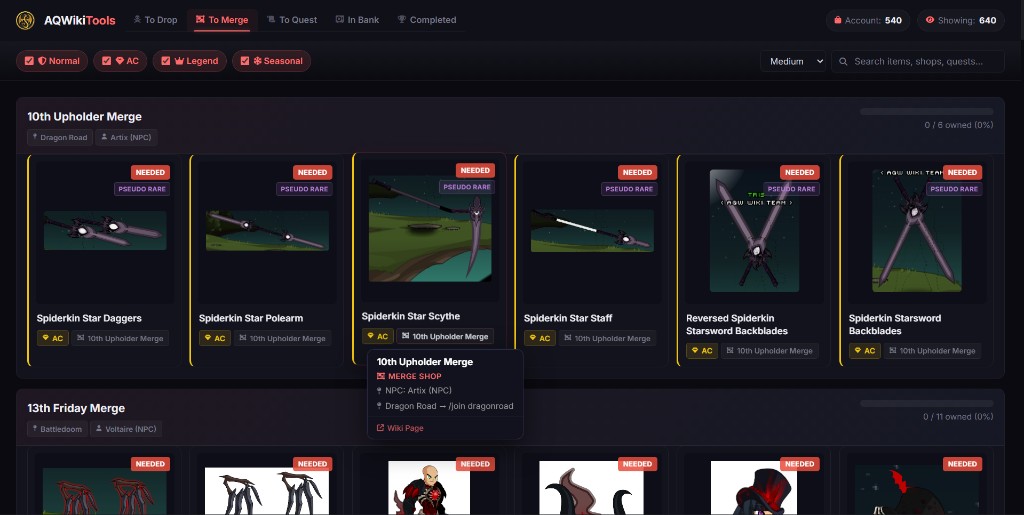
Farm Tracker — To Merge
Tracker

To Merge

Unowned merge shop items grouped by shop, with NEEDED badges and progress per shop.

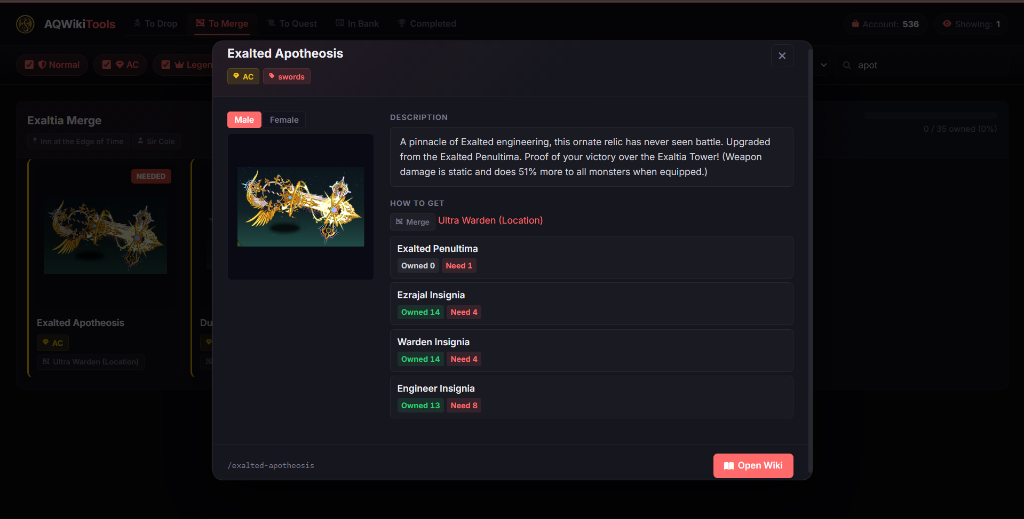
Detailed Merge Requirements
Tracker

Merge Requirements

See exactly what materials you need to merge items. Track owned vs needed quantities and locate drop sources.

Bank View
Tracker

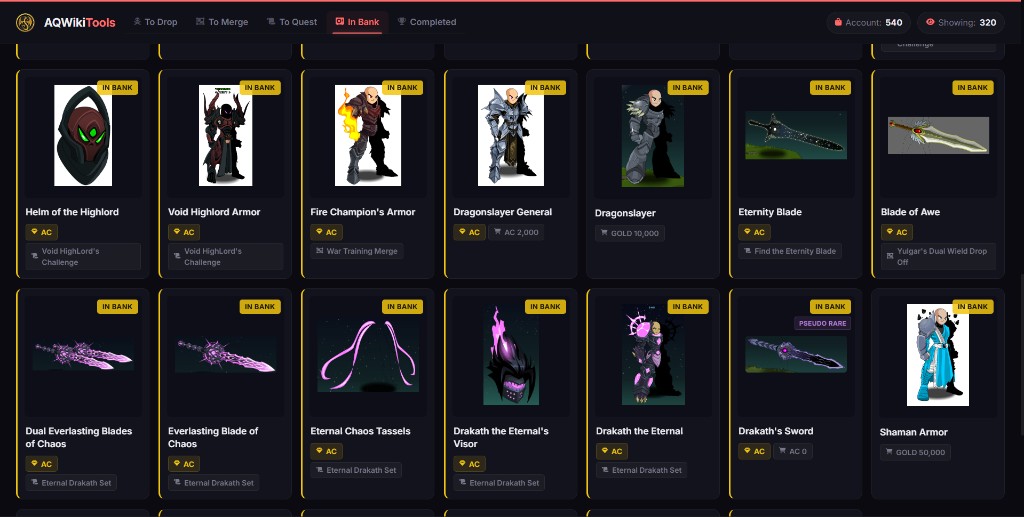
In Bank View

All banked items in a card grid with IN BANK badges, rarity tags, and source info.

Collection Stats
Tracker

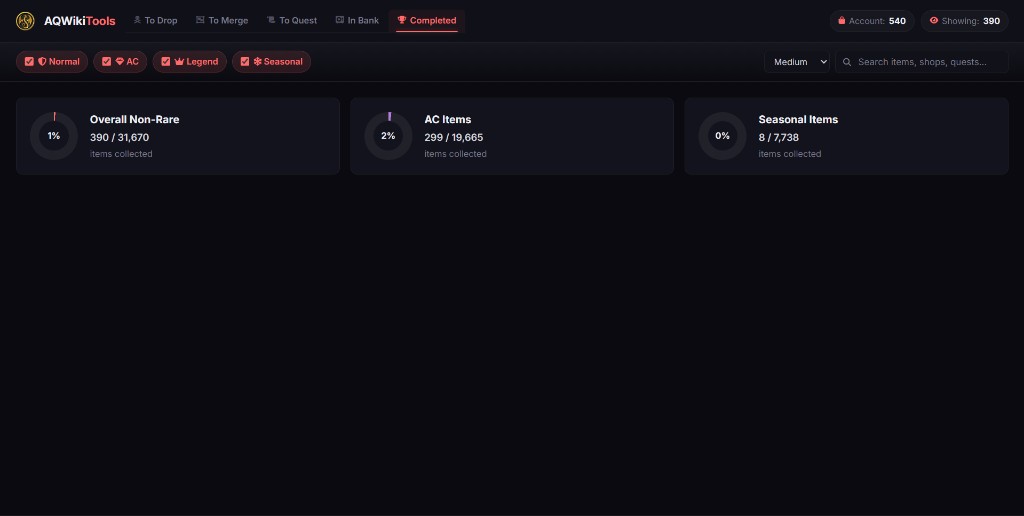
Collection Stats

Donut charts for overall completion across Non-Rare, AC, and Seasonal categories.

Character Page Compare
Tool

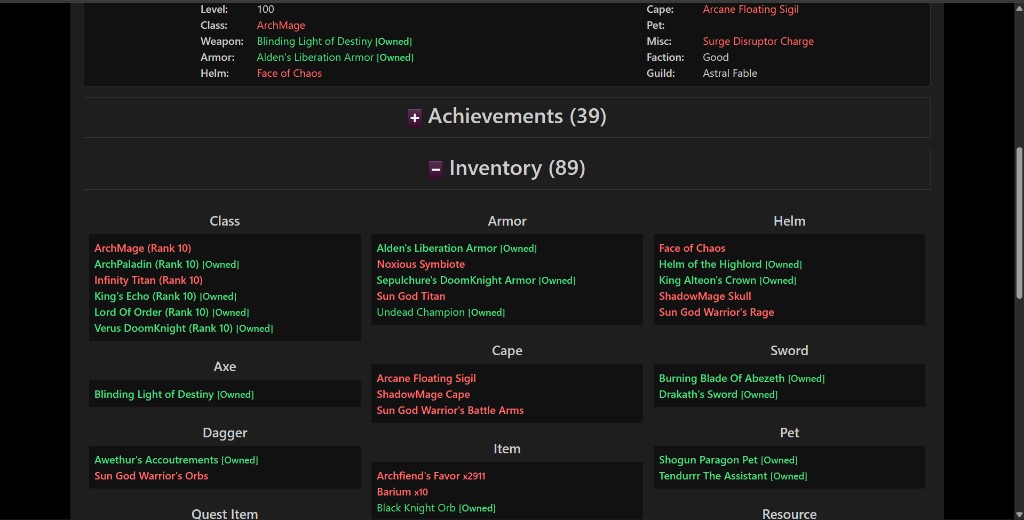
Character Compare

See [Owned] tags next to items you share with other players.

Get Started

Install in 2 Minutes

Pick your browser and follow the steps — it's easier than you think.

Download the Extension

Grab the ZIP from GitHub — one click.

Download ZIP

Extract the ZIP

Right-click the .zip → "Extract All..."

Inside you'll see an AQWikiTools-main folder — that's the one you'll load in the next steps.

Open Extensions Page

Type chrome://extensions in your address bar.

Menu More tools Extensions

Enable Developer Mode

Flip the toggle in the top-right corner.

Click to try!

Load Unpacked

Click "Load unpacked" → select the AQWikiTools-main folder.

Pick the folder that has manifest.json inside it — not the outer wrapper folder.

Find & Pin the Extension

Click the puzzle piece icon in your Chrome toolbar (top-right), then click the pin icon next to AQWikiTools.

This pins the AQWikiTools icon to your toolbar so you can always access it with one click. You'll use this icon to open settings, toggle dark mode, and launch the Farm Tracker.

Sync Your Inventory

Visit account.aq.com while logged in. The extension syncs automatically.

Syncing items...

You're All Set!

Visit aqwwiki.wikidot.com and enjoy! Click the AQWikiTools icon in your toolbar for settings & Farm Tracker.

1 / 8
Guide

How to Use AQWikiTools

Not sure where to start? Here's a quick guide to every feature — click each one to expand.

1
Sync your inventory

Go to account.aq.com/AQW/Inventory and make sure you're logged into your AQW account. The extension will automatically detect and save your items — you'll see a green checkmark in the popup when it's done.

2
Browse the AQW Wiki

Head to aqwwiki.wikidot.com. The extension activates automatically on the wiki — you'll see item previews, owned badges, and dark mode (if enabled) right away.

3
Open the popup

Click the AQWikiTools icon in your browser toolbar to access settings, toggle dark mode, check your sync status, and launch the Farm Tracker.

Re-sync anytime: If you get new items in-game, just revisit the account page to update your inventory. The extension will pick up the changes automatically.
Dark Mode

Toggle it from the extension popup. Once enabled, every AQW Wiki page will render in a clean dark theme. Your preference is saved automatically.

Hover Previews

Hover over any item link on the wiki to see a popup with the item's image, rarity, and description. No clicks needed — just hover!

Owned Item Badges

After syncing, items you own will show color-coded [Owned] badges and bank/inventory icons right on wiki pages. Instantly know if you already have something!

Drop Rate Badges

Community-estimated drop rates appear as small badges next to item names on the wiki. These help you decide whether a farm is worth the grind.

All wiki features work automatically — no setup needed beyond installing the extension and syncing your inventory.
1
Visit any quest page on the wiki

For example, go to a quest like The Assistant on the AQW Wiki.

2
See the calculator appear automatically

The extension injects a progress bar and material breakdown showing how many of each required item you own vs. how many you need. Green = done, red = still needed.

3
Works on merge shops too

Visit any merge shop page on the wiki and you'll see the same calculator with material tracking for each merge recipe.

Pro tip: The calculator updates every time you re-sync your inventory. Farm some materials, re-sync, and watch your progress bar fill up!
1
Open the Farm Tracker

Click the AQWikiTools icon in your toolbar, then click the "Farm Tracker" button. It opens in a new tab as a full-page dashboard.

2
Use the tabs at the top

Switch between different views:

  • To Drop — All unowned items that drop from monsters/quests. Filter by rarity (AC, Seasonal, Legend, etc.)
  • To Merge — Unowned items available from merge shops, grouped by shop with progress bars
  • To Quest — Quest rewards you haven't obtained yet
  • In Bank — All items currently in your bank
  • Completed — Collection completion stats with donut charts
3
Search & filter items

Use the search bar to find specific items. Use the filter buttons to narrow by rarity type. Click any item card to see its full details, drop sources, and drop rates.

4
Check detailed item info

Click on any item to open a detail modal. You'll see the item description, where it drops from, and community-estimated drop rates. Hover on monster/location names for quick previews.

Pro tip: The Farm Tracker uses your synced inventory to know what you own. Re-sync after farming to see your progress update in real time!
1
Visit any player's character page

Go to a character page on AQW's account site (e.g., account.aq.com/CharPage?id=PlayerName).

2
See [Owned] tags

Items that you also own will be highlighted with an [Owned] tag. This makes it easy to quickly spot items you don't have and might want to farm for.

Make sure you've synced your own inventory first — the comparison uses your saved item data.
Access settings via the popup

Click the AQWikiTools icon in your toolbar. From the popup you can:

  • Toggle Dark Mode — Enable/disable wiki dark theme
  • Toggle Image Previews — Turn hover previews on/off
  • Character Page Settings — Control comparison features
  • View Active Boosts — See current Gold, XP, Rep, and Class Point server boosts
  • Check Sync Status — See when you last synced and how many items were detected
All your settings are saved locally in your browser. They persist across sessions — no account needed.
Safety

Open Source & Safe

No hidden code, no data collection, no shady stuff. Verify it yourself.

100% Open Source

Every line of code is public on GitHub under the MIT License.

Zero Data Collection

Everything stays in your browser's local storage. No servers, no analytics, no tracking.

Minimal Permissions

Only storage and artix.com access for server boosts. That's it.

Verify It Yourself

Scan the ZIP on VirusTotal — 70+ antivirus engines, free by Google.